Lesson 2 · Motion Basics
What is this lesson about?
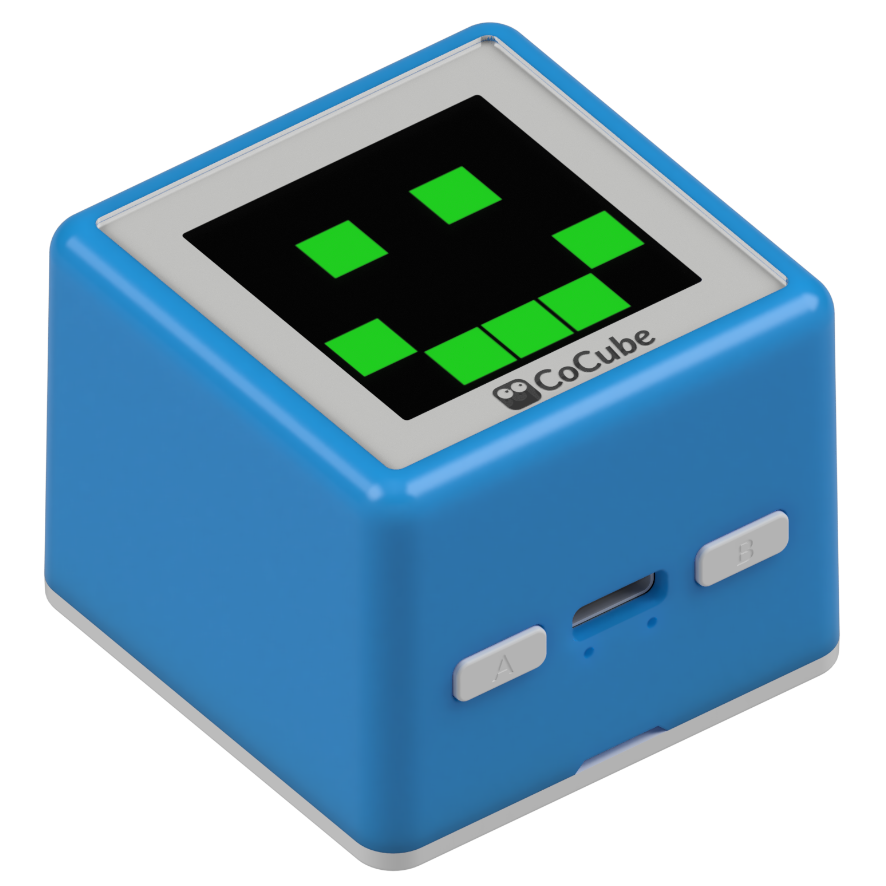
This lesson is where CoCube really starts to move.
The goal is not to complete a complicated task immediately, but to get the most basic actions working first: forward, reverse, turn, and stop.
Learning goals
- Use time-based control to make CoCube move forward, backward, and turn
- Combine a few simple actions into a basic path
- Understand the difference between
stop()andbrake() - Know why time-based control produces error
Hardware and APIs used
This lesson only needs the CoCube robot itself. You do not need CoMaps or extra expansion modules.
The main APIs used here are:
cocube.move_ms(direction, speed, ms): move forward or backward for a duration.directioniscocube.FORWARDorcocube.BACKWARD;speedis usually0~50;msis the duration in milliseconds.cocube.rotate_ms(direction, speed, ms): rotate for a duration.directioniscocube.LEFTorcocube.RIGHT;speedis the turning speed.cocube.move(direction, speed): continuous movement. It keeps the current output until you callstop()orbrake().cocube.stop(): coast to a stop without actively locking the wheels. Good for observing inertia.cocube.brake(): active braking, which stops the robot faster.
First, understand what this capability means
This lesson starts by moving CoCube with time-based control.
The advantage is that it is quick to start and gives immediate results.
But you also need to accept one fact: the same code can produce slightly different results on different surfaces, battery levels, and friction conditions.
So this lesson focuses on two things first:
- get the action order correct
- compare the real path with the expected one
Start coding
1. Get forward and backward working first
import time
import cocube

cocube.move_ms(cocube.FORWARD, 30, 800)
time.sleep_ms(300)
cocube.move_ms(cocube.BACKWARD, 30, 800)
The goal of this program is simple:
- confirm that forward works correctly
- confirm that backward works correctly
- see how much movement the
speedandmscombination produces
2. Combine straight motion and turning into a short path
In Lesson 2, start by using rotate_ms() for turning.
import time
import cocube

cocube.move_ms(cocube.FORWARD, 30, 900)
time.sleep_ms(250)

cocube.rotate_ms(cocube.LEFT, 25, 720)
time.sleep_ms(250)

cocube.move_ms(cocube.FORWARD, 30, 700)
You can keep adjusting these parameters:
900and700decide the travel distance720decides how much the robot turns
3. Try the difference between stop() and brake()
import time
import cocube

cocube.move(cocube.FORWARD, 25)
time.sleep_ms(1000)
cocube.stop()

time.sleep_ms(1200)

cocube.move(cocube.FORWARD, 25)
time.sleep_ms(1000)
cocube.brake()
This program moves forward twice:
- the first stop uses
stop() - the second stop uses
brake()
What should you observe while it runs?
When you run the programs in this lesson, focus on these effects:
- after
move_ms()finishes, CoCube brakes automatically stop()feels more like removing power, so the robot usually glides a little fartherbrake()stops more decisively- the same turning time does not always produce exactly the same angle
Common issues / reminders
- If the floor is too slippery or too rough, path error becomes more obvious
- For the first path tests, keep the speed around
20~30so it is easier to observe - Leave enough space before running the program so CoCube does not hit edges or obstacles
Challenge
Start with the classic path challenge: a square.
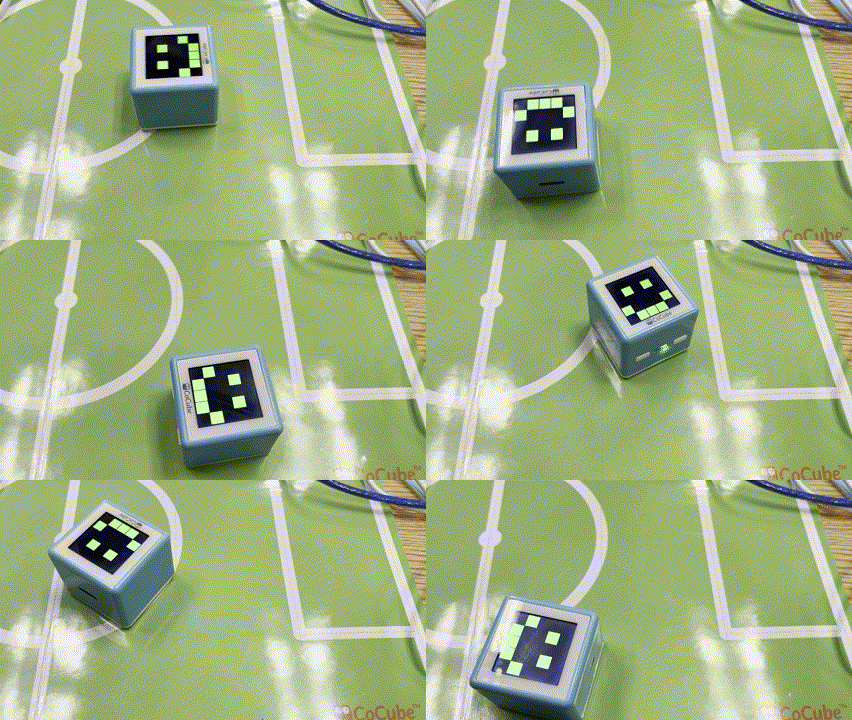
Once the square works, observe what happens when the left and right wheel outputs are not perfectly symmetrical.
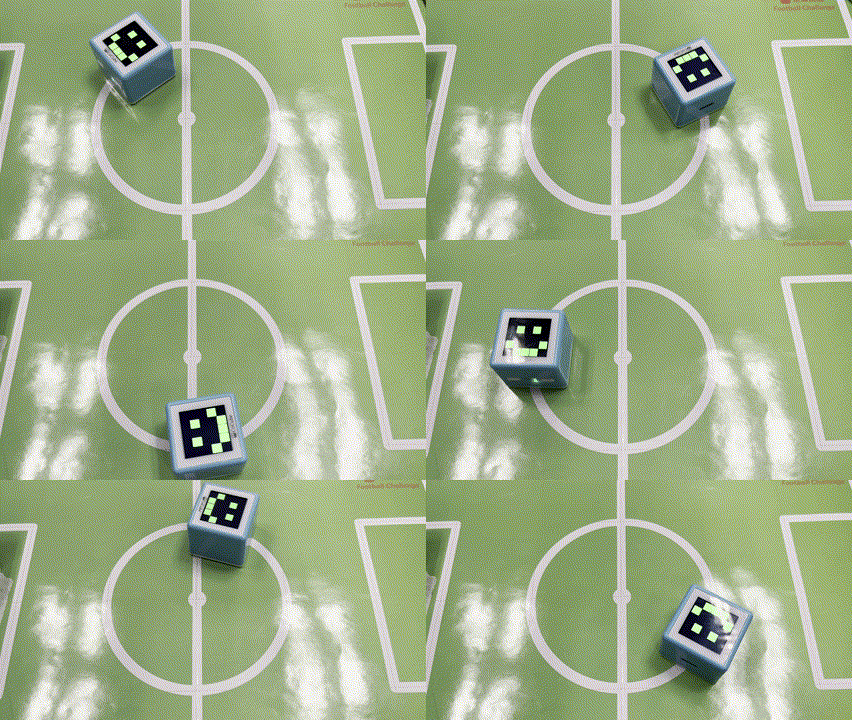
Try these directions next:
- connect four straight segments and four turns into a square
- adjust the turning time so each corner gets closer to
90degrees - intentionally make one segment shorter or longer and watch how the path changes
Reference code: drive a square (try it yourself first, then expand)
import time
import cocube

for _ in range(4):
    cocube.move_ms(cocube.FORWARD, 40, 1000)
    time.sleep_ms(250)
    cocube.rotate_ms(cocube.LEFT, 30, 1000)
    time.sleep_ms(250)

cocube.brake()
This gives you a runnable starting point.
If the real path is not square enough, adjust the timing values first.
Reference code: drive in a circle (try it yourself first, then expand)
import cocube

while True:
    cocube.set_wheel(20, 40)
This keeps the left and right wheel outputs different, so the path becomes close to a circle.
If the circle is too large, increase the difference between the two sides. If it turns too sharply, bring the two values closer together.
Quick reference
The most common pattern in this lesson is:
import cocube

cocube.move_ms(cocube.FORWARD, 30, 1000)
cocube.rotate_ms(cocube.LEFT, 25, 700)
cocube.brake()
cocube.move_ms(...): straight movement for a durationcocube.rotate_ms(...): turning for a durationcocube.move(...): continuous movementcocube.stop(): coast to a stopcocube.brake(): active braking
If you want to keep looking up motion APIs, go to the cocube core reference.