Lesson 7 · Light Sensing
What is this lesson about?
This lesson focuses on one core idea: changes in light.
The light sensor does not tell you whether there is an obstacle in front. It is better for deciding whether the environment is becoming brighter or darker, then letting the program switch the screen or state.
Learning goals
- Read the current light value from the module
- Use a threshold to judge whether the environment is bright or dim
- Turn light changes into screen state changes
- Understand the basic structure of "input -> judgment -> feedback"
Hardware and APIs used
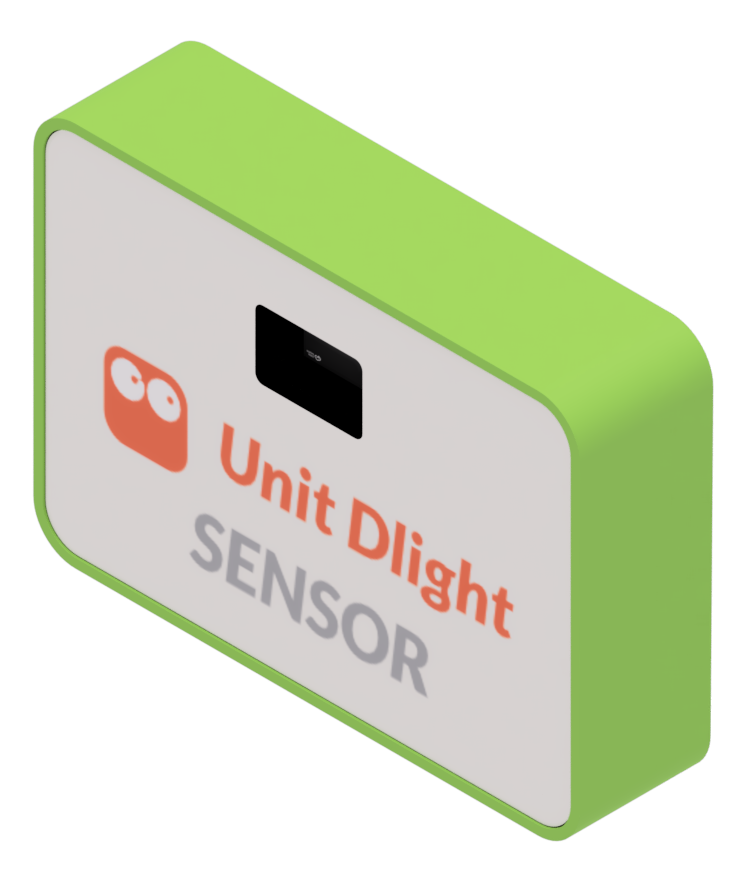
This lesson requires the digital light module.
The main APIs used here are:
cm.power_on(): power on the expansion modulescm.dlight_level(): read the raw light value. Larger numbers usually mean a brighter environment.display.init(): initialize the screen and return thetftobjectdisplay.write(text, x, y, color=display.WHITE, bg=display.BLACK, size="normal"): draw text on the screentft.fill(color): fill the full screen with a color
First, understand what this capability means
The light module is especially good for threshold-based logic.
The program does not directly know whether it is "day" or "night."
It first receives a number, and then you decide:
- below what value should count as dim
- above what value should count as bright
Start coding
1. First check how bright the current environment is
import time
import cocube_module as cm

cm.power_on()
time.sleep_ms(300)

while True:
    print("light =", cm.dlight_level())
    time.sleep_ms(200)
Watch the values in your own environment for a while first, then decide where the threshold should be.
2. Switch the screen state based on brightness
import time
import cocube_module as cm
import display

cm.power_on()
time.sleep_ms(300)
tft = display.init()

while True:
    light = cm.dlight_level()

    if light < 20:
        tft.fill(display.BLUE)
        display.write("Dim", 88, 104, display.WHITE, display.BLUE, size="big")
    else:
        tft.fill(display.YELLOW)
        display.write("Bright", 72, 104, display.BLACK, display.YELLOW, size="big")

    print("light =", light)
    time.sleep_ms(200)
This program does three things:
- read the brightness value
- decide whether the environment is closer to bright or dim
- show the result on the screen
What should you observe while it runs?
When you run this program, focus on these effects:
- whether the value drops clearly when you cover the sensor
- whether the screen flips back and forth near the threshold
- whether the raw value range changes a lot in different lighting conditions
- whether the screen colors make the current state obvious
Common issues / reminders
- The threshold is not a fixed answer; read the real values first, then tune it
- After first power-on, wait a short moment before reading the module
- If the state switches too often, increase the gap between the two conditions
- Make the screen switching clear first before combining it with movement or other sensors
Challenge
Try making a "two-mode status screen":
- one color and message when it is bright
- another color and message when it becomes dim
If you want to extend it further:
- show the current brightness value on the screen
- give different brightness ranges different screen themes
Quick reference
The most common pattern in this lesson is:
import cocube_module as cm

cm.power_on()
print(cm.dlight_level())
cm.power_on(): power on the expansion modulescm.dlight_level(): read the raw light valuedisplay.init(): initialize the screentft.fill(...): switch the background colordisplay.write(...): show the current state
If you want to keep looking up peripheral APIs, go to the cocube_module reference.